IAPViewer Support

Last Updated: May 31, 2026

See also: Documentation · API Reference · Privacy Policy · Terms of Use

Note: IAPViewer is developed and maintained by a single network engineer as a side project. Support is provided on a best-effort basis with no guaranteed response time.

Contact

Email: support@bdlfoundry.dev
Typical response time: 1–2 weeks for non-critical issues
Priority: Critical bugs affecting core functionality first, then everything else

Before Contacting Support

Please verify the following first:

Tip: Use the Test API button in the site editor (see FAQ below) to validate REST reachability before opening a support ticket. Paste the resulting log into your message — it makes diagnosis much faster.

Navigating the App

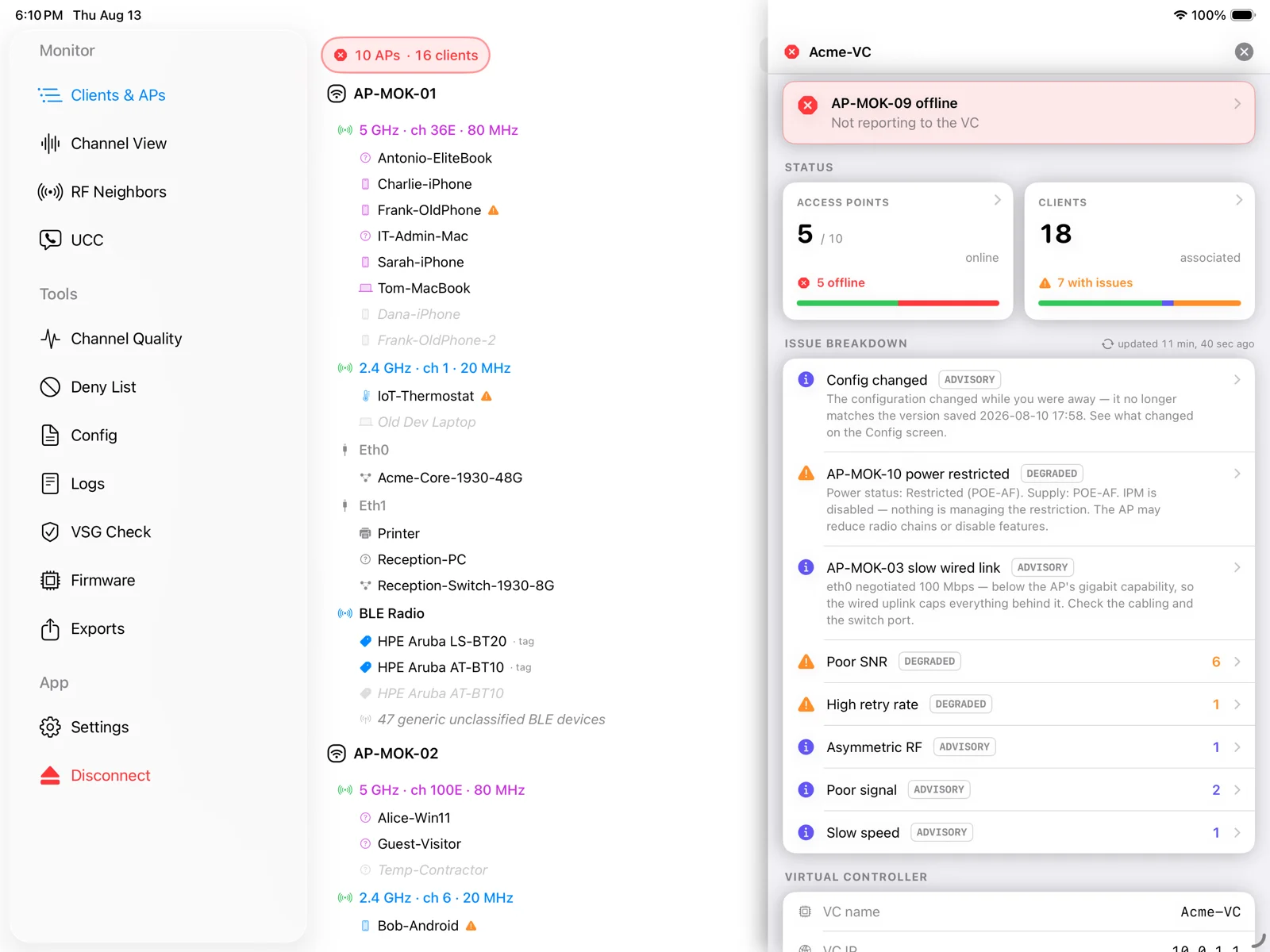
IAPViewer adapts its navigation to the device it's running on:

iPad (and Apple Silicon Mac running "Designed for iPad")

A persistent sidebar runs down the left side of the screen, organised into four sections:

In portrait orientation the sidebar is hidden by default and swipes out from the left edge.

iPhone Pro / Max in landscape

The same sidebar is used, hidden by default and swiped out from the left edge.

iPhone in portrait

A tab bar runs along the bottom of the screen with five items: Clients & APs, Channels, RF Neighbors, Settings, and Disconnect. The remaining sidebar entries (Legacy and Analyze sections) are reached from within Settings.

Frequently Asked Questions

What devices are supported?

IAPViewer is an iOS/iPadOS app, supporting iOS 16 and later. It runs natively on iPhone and iPad, and on Apple Silicon Macs via "Designed for iPad" — install it from the App Store on your Mac and it runs as the iPad app inside a Mac window.

There is no longer a separate native macOS version. The native Mac build was retired in May 2026 in favour of a single iPadOS codebase, which keeps the experience consistent across all platforms and lets development time go into features rather than maintaining two parallel UIs.

What's the oldest device IAPViewer runs on?

IAPViewer targets iOS 16 as its minimum, which covers iOS devices back to roughly 2015 — including the first-generation iPad Pro 12.9" and iPhone 6s. The app is network-bound rather than CPU-bound, which means older hardware isn't materially slower than current hardware.

For reference, a full load against a production cluster of 11 APs with around 110 clients takes:

If you have older hardware sitting unused — an old iPad in a drawer, a spare iPhone — it's a perfectly viable dedicated IAPViewer device. A cheap eBay purchase of a first-generation iPad Pro is enough to run the app indefinitely.

Does this work with HPE InstantOn?

No. IAPViewer only works with Aruba IAP clusters running AOS 8 (versions 8.10–8.13). HPE InstantOn uses a completely different infrastructure and is not supported.

Does this work with Campus Controllers or Mobility Conductors?

Not yet. The current version supports Aruba Instant APs (IAP) only. Campus Controller support is potentially planned for a future release with no ETA.

Do I need an Aruba Central subscription?

No. IAPViewer connects directly to your Virtual Controller over your local network and has no cloud dependencies. It works with both locally-managed and Central-managed clusters.

How do I connect to my Virtual Controller?

Enter your VC's IP address, username, and password in the site editor. IAPViewer stores credentials securely in your system Keychain. You can optionally add a fallback VC IP for resilience — see the relevant FAQ entry below.

What is the Test API button?

The site editor includes a Test API button that runs a pre-login REST probe against your Virtual Controller and shows the raw exchange — login, a show version call, and logout, with full request and response capture for each step. If you've configured both a primary and a fallback IP, it tests them side by side.

Use it to validate VC reachability and REST API configuration before the main app even touches the site. The Copy log button puts the full transcript onto the clipboard — paste it into a support email and most diagnoses become a five-minute job.

What is the fallback VC IP?

Each site can carry an optional secondary VC address. If the primary IP doesn't respond — for example after a cluster reboot, a floating-IP rebind failure, or a brief network blip — IAPViewer silently retries against the fallback and shows a brief notice once you're connected.

If the fallback is used on two consecutive sessions, the app will prompt to swap it with the primary. On sites that don't yet have a fallback, a one-time tip suggests adding one on first connect.

Why this matters: In an IAP cluster the VC role can move to a different AP after a reboot or failure. The cluster VC IP usually re-attaches to the new VC, but not always cleanly. A configured fallback IP — typically one of your member APs' individual addresses — gives IAPViewer a second route in if the cluster VC IP isn't responding.

What does the loading bar at the top of the screen mean?

IAPViewer fetches your cluster's data through a sequence of API calls to the Virtual Controller. While that's happening, a thin coloured progress strip is shown at the top of the screen.

The bar is layered — it runs in stages, each its own colour, and a light haptic pulses once per completed call so the rhythm matches the bar. The first two stages always run; the rest only run when their toggle is enabled in Settings:

  1. Core — light blue. The data needed to populate the main views: cluster summary, firmware, clients, associations, and per-AP details. When this finishes the app is fully usable.
  2. Detail — mid blue. Channel quality, per-AP statistics, RF neighbours, performance metrics, wired-port data, and ancillary cluster info.
  3. Spectrum — amber. Per-AP spectrum scans for Channel View and channel-detail cards. Optional (Load Spectrum Data, on by default).
  4. BLE — blue. Per-AP Bluetooth discovery. Optional (Load BLE Data, off by default).
  5. UCC — green. Voice/Video (Wi-Fi calling, meeting apps). Optional (Load UCC Data, off by default).

Once a stage completes its bar stays filled while the next grows over the top. The optional-stage colours match the dots shown next to their toggles in Settings, so the colour tells you which feature is loading. A full core+detail load completes in around 16 seconds on a healthy mid-sized cluster.

You can freely navigate around the app while loading — it does not interrupt the sequence. Once a view's data is available it will populate; views that depend on later stages will fill in as the bar progresses.

What is Clients & APs?

Clients & APs is a tree view of your cluster, ordered the way you'd reason about it physically: cluster at the top, APs underneath, radios under each AP, and clients under each radio. It's the quickest way to see at a glance which AP a client is on, which radio it's using, and the channel and bandwidth that radio is operating at.

Performance issues are flagged inline: a yellow warning triangle appears on any client row where the client meets the same thresholds used by the Performance view. Radios in monitor mode are flagged in orange.

A wired topology overlay is also available, showing how each AP is connected back through your switching infrastructure where that information is visible to the VC.

What is Channel View?

Channel View presents a WiFi-Explorer-style view of every AP radio in your cluster, drawn across the 2.4, 5, and 6 GHz bands. Each AP radio appears as a bar:

Sub-band shading along the top and baseline distinguishes ISM, UNII-1 through UNII-8, DFS channels, and 6 GHz PSC channels. Tap any bar to open the Channel Detail card, which shows utilisation, SNIR, noise floor, interference breakdown, and any neighbouring SSIDs on the same channel.

For bonded channels wider than 20 MHz, the Channel Detail card includes a sub-channel picker — a row of chips for each 20 MHz block within the bond, coloured by per-block quality so you can immediately see which sub-channel is dragging the overall channel down.

When Load Spectrum Data is enabled, foreign and rogue SSIDs detected by your APs are overlaid on the chart as translucent ghost bars on a separate RSSI scale on the right gutter. Footer chips let you filter the view to your own radios, foreign SSIDs only, or rogue SSIDs only.

On iPhone in portrait, this view is reached via the Channels tab in the bottom bar. On iPad and on iPhone in landscape, it's Channel View in the Monitor section of the sidebar.

What is the Spectrum data toggle in Settings?

Spectrum data is an additional set of API calls that IAPViewer makes against each online AP to retrieve detailed RF information — channel quality scores, SNIR, non-WiFi interference breakdown (Bluetooth, microwave, cordless phones, LTE-U, etc.), active interferers, and recent spectrum alerts.

This is the data that powers:

It runs as a third loading stage after the rest of the cluster data is ready, so the app stays usable while it completes. On a 12-AP cluster it adds roughly 3–5 seconds to the overall load time.

If you're on a larger cluster or simply want the fastest possible refresh time, you can turn this off in Settings → Load Spectrum Data. The spectrum sections in the app will then show a placeholder explaining that spectrum data is disabled, and overall load time will drop.

What is Voice & Video (UCC)?

An optional view of the Unified-Communications sessions your cluster can see — Wi-Fi calls, FaceTime, and meeting apps like Teams, Zoom, and Meet. It groups them into Now (a call in progress), Registered (Wi-Fi calling is ready but idle), and Recent. IAPViewer distinguishes an active call from an idle registration by watching the encrypted tunnel's traffic counters between refreshes. It's off by default — enable Load UCC Data in Settings. The view loads as the green stage on the load bar.

What is BLE Discovery?

An optional Bluetooth Low-Energy scan: each AP reports the BLE radio it has plus the asset tags and beacons it currently hears. When enabled, every AP in the Clients & APs tree gains a BLE radio node, and a dedicated BLE Discovery browser aggregates every device the cluster hears (de-duplicated across APs, with vendor attribution). Enable Load BLE Data in Settings; it loads as the blue stage on the load bar.

What is the Event Log?

A per-site record of what happened during your sessions — connection events, API failures, why a session ended, which VC IP was used, and a per-load breakdown (call counts and timing). Open it from the site editor (next to Test API) or Settings → Advanced Tuning → View Event Log. If you ever hit an intermittent problem, this is the first thing to check — and you can email it to support in one tap. For the deepest detail, turn on Verbose API Trace to record every call.

Why was I returned to the login screen?

For security, IAPViewer signs out of the controller when the app goes to the background. To avoid logging you out for a quick glance at another app, there's a grace period — Settings → Advanced Tuning → Keep session on switch (default 30 seconds). Come back within that window and your session is preserved; stay away longer and you'll need to log in again. Sending a support email or opening the support site no longer logs you out. The 14-minute inactivity timeout still applies regardless.

Why do some views return errors if I navigate too quickly after login?

Earlier versions of IAPViewer could lose data if you navigated through views too aggressively during the initial load. This is no longer the case — the current version runs every controller request strictly one-at-a-time across all background and on-demand work, so navigating (or opening the Voice/Video page) while loading is safe.

If you do still see API errors, this is almost always a sign that your Virtual Controller is struggling to keep up with the rate of requests. See Common Issues → Adjusting the API call gap below.

What do the new connection-error dialogs mean?

IAPViewer used to surface most connection problems through a single generic "Firmware Version Error" alert, which was confusing because it fired for problems that had nothing to do with firmware. That has been replaced with four cause-specific dialogs:

Login screen errors have also been improved. Underlying HTTP and URL error codes are now translated into readable text — for example, "Username or password is wrong" instead of "HTTP 401 from VC".

What does the orange warning triangle on Disconnect mean?

It means your VC session is about to time out. VC REST sessions expire after 15 minutes of inactivity, and the triangle is a heads-up that you're close to that limit.

Any activity in the app — refreshing data, navigating between views, or tapping into a detail card — resets the 15-minute timer. The triangle clears automatically once activity is detected.

On iPhone the warning is accompanied by a slim banner above the main content. On iPad and Mac it appears as an inline caption under the Disconnect row in the sidebar.

How accurate is RF Location?

RF Location is a experimental probability estimator, not a precision locator. It can be enabled in Settings -> Show RF Location. It does not put a pin on a neighbour AP or client the way GPS would. For each detected RF neighbour, it takes the RSSI values reported by your own APs and computes a range of likely distances and directions — a probable area, with a minimum and maximum bound, rather than a coordinate.

All results are derived entirely from data returned by the installed, online, and responding APs. IAPViewer has no other source of truth. Where multiple APs hear the same neighbour, their probability rings overlap; where the overlaps are tight, the estimate is tighter. Where they are loose, so is the answer.

What makes estimates better or worse

Accuracy depends almost entirely on your AP deployment, not on the app. Estimates improve when:

Most real-world installations were designed for client coverage, not RF geolocation. APs are commonly placed for convenient cable runs, mounted behind obstructions, oriented inconsistently, or spaced unevenly. All of this is perfectly fine for serving Wi-Fi, and all of it reduces the precision of RF Location results. Expect your own site to fall into this category — it is the norm, not the exception.

How to read the results

Treat probability areas as "this neighbour is more likely here than there," not as a fixed pin. A tight, well-defined peak means the geometry of your install happened to work in your favour for that particular neighbour. A broad, fuzzy area means the data simply does not support a tighter answer, and no amount of computation will change that.

Best use: RF Location is most useful for narrowing a search — pointing you in the right general direction — before walking the area with a handheld scanner to pin down the exact source.

What does RF Neighbors show?

RF Neighbors is the cluster's complete view of every other Wi-Fi network and device its radios can hear — your own SSIDs, foreign networks, and any APs that have been classified as rogue. It's organised by SSID, with each SSID expanding to show the individual BSSIDs detected and which of your own APs is hearing them.

The data is aggregated from every online AP in your cluster, not just from the Virtual Controller AP. This is important: a single AP's view of the RF environment is heavily biased toward whichever band it happens to be scanning on, and the VC's own radio is usually serving clients rather than monitoring. By gathering scan results from each AP and merging them — keeping the strongest signal where the same neighbour is heard by multiple APs — IAPViewer gives you a complete picture across 2.4, 5, and 6 GHz.

Does IAPViewer access my location?

On iOS and iPadOS, the app requests your device location to centre the RF Location map on your current position when you first open it. Permission can be granted or revoked at any time in Settings → Privacy & Security → Location Services → IAPViewer.

On Apple Silicon Macs running the app as "Designed for iPad", macOS may prompt for location permission depending on your system configuration. If it does, location is determined by macOS using available network signals rather than GPS hardware, and is used only to centre the map.

Your location is never stored on your device and never transmitted off the device.

What does the amber warning triangle on an AP card mean?

An amber triangle indicates a constrained AP model — one with a known firmware ceiling below the final AOS 8 release (8.13). The AP is not broken or offline; it simply cannot run firmware above its supported maximum train.

Open the AP's detail view. The Version Support section shows the exact minimum and maximum supported firmware versions for that model. If your cluster is running firmware within that range, the AP is fully operational. If you are planning a firmware upgrade, check the Firmware view first.

What is the Firmware view?

The Firmware view helps you understand the impact of a firmware upgrade on your AP fleet before you commit to it. On iPad and Mac it's a top-level entry in the Analyze section of the sidebar. On iPhone, it's reached via Settings.

The compatibility data is bundled with the app and updated automatically in the background when a newer version is available.

Offline Clients?

IAPViewer keeps a record of wireless clients it has seen connected to your cluster. Clients that were previously online but are no longer present appear in an Offline section at the bottom of the Clients view, showing when they were last seen, which AP they were connected to, and which SSID they used.

This is useful for tracking down devices that have left the network, investigating whether a specific device has ever connected, or identifying stale entries that are no longer relevant.

Common Issues

Can't connect to Virtual Controller

Login fails with correct credentials

VC session timed out

Aruba Virtual Controllers sign a REST session out after roughly 15 minutes of inactivity. When that happens mid-session, IAPViewer shows a "session timed out" notice and returns you to the login screen. This is normal VC behaviour, not a fault.

Missing APs or incomplete data

App crashes or freezes

Load failures, stalls, incomplete data, or API errors — adjusting the API call gap

IAPViewer queries the Virtual Controller with a sequence of API calls during each load. The VC handles these calls one at a time, and on some clusters it can struggle to keep up, resulting in:

All of these symptoms can indicate the VC is not keeping up with the rate of API requests. The fix is to introduce a deliberate pause between calls.

Where to find it: Settings → Advanced Tuning → API Call Gap. The slider adjusts the delay between API calls from 0ms to 150ms and is saved per site.

Default values

Suggested approach

If you are seeing any of the symptoms above, increase the gap incrementally and retry until the load completes cleanly:

  1. Try 50ms first
  2. If still failing, increase to 100ms
  3. If still failing, increase to 150ms (maximum)

Use the lowest value that works reliably for your cluster. There is no universally correct setting — the right value depends on your specific hardware and cluster size.

Why some clusters need a larger gap

The Virtual Controller runs on the same hardware as one of your APs. The processing power of the VC AP directly affects how quickly it can respond to API requests. A cluster where the VC role is held by an older, lower-powered model (such as an AP-303) has significantly less headroom than one running on a current high-performance model (such as an AP-555). Larger clusters amplify this, as there is more data for the VC to process and return.

Note: This is based on observed behaviour across a small number of test environments, not formally documented Aruba specifications. HPE Aruba's own guidance recommends IAP VC clusters do not exceed 128 APs in a single L2 cluster due to general performance constraints — IAPViewer's API load is one additional factor within that broader picture. Use whatever value works reliably for your environment.

Intermittent failures on Aruba Central-managed clusters

On clusters enrolled in Aruba Central, IAPViewer may experience connection failures, API errors, or incomplete loads that do not occur on locally-managed clusters. These are conditions of the Virtual Controller itself — not a IAPViewer issue.

Why Central-managed clusters are more susceptible

The Virtual Controller runs on the same physical hardware as one of your APs. When a cluster is enrolled in Central, the VC AP handles Central's management plane on top of its normal cluster duties — configuration syncs, telemetry, subscription state, and more. On lower-powered hardware, this leaves less headroom for local REST API requests. IAPViewer automatically applies a 50ms API call gap on Central-managed clusters to reduce this pressure, but it cannot eliminate the underlying constraint.

When Central itself has a problem

More significant failures can occur when Central encounters an issue — for example, when a subscription lapses or when connectivity between the VC and Central is disrupted. In these conditions, the VC can oscillate between locally-managed and Central-managed modes while attempting to resolve its state. During this period the VC may be unresponsive to local REST API requests for extended periods, regardless of the API call gap setting.

Other events that place high CPU or memory demand on the VC — such as large configuration commits or periods of high client authentication volume — can produce similar symptoms.

Note: When the VC is occupied by Central workload or fault conditions, IAPViewer will time out, stall, or return errors. This is expected behaviour — IAPViewer cannot compensate for a VC that cannot respond to local API requests. Check your Aruba Central portal for alerts, subscription status, or active operations before concluding there is an app-level issue.

What to do

Known Limitations

Bug Reports & Feature Requests

Reporting Bugs

Email support@bdlfoundry.dev with:

Feature Requests

Feature requests are noted but no timeline is guaranteed. Current roadmap priorities:

  1. Bug fixes for existing features
  2. Additional IAP features based on user feedback
  3. Campus Controller support (possibly in the future, no ETA)
  4. Aruba Central API support (possibly in the future, no ETA)

Refunds

For refund requests, contact Apple Support directly. App Store refund policy applies.


Privacy: IAPViewer does not collect, store, or transmit your personal data or network information. The app may request your device location to centre the RF Location map (optional, never stored or transmitted). The app downloads a public AP compatibility database from this support site — no personal data is transmitted. All credentials are stored locally in your device's Keychain. See our Privacy Policy and Terms of Use for full details.
Last updated: May 31, 2026